Entropia Universe avatar creation
| |||
Latest Forum Threads
Find more in the Tutorials, Guides and Help forum section! |
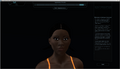
This guide is illustrating the avatar creation process in Entropia Universe.
Most important: Take your time when creating your avatar. Once you have finished and left avatar creation mode you quite likely will not be able to change the visual appearance of your avatar without spending money.
Please also note: The clothes in the avatar creation mode are just showcases, you will arrive in Entropia Universe with very basic clothes depending on the planet you choose to start on.
The best overview is probably to get from this official video (more videos in the media section further below):
Avatar creation[edit]
The avatar creation process itself is pretty self-explanatory. Once started you can choose from a number of male or female avatar appearance presets (see further below: Avatar appearance presets) and a number of male and female hairstyles as well as male beard styles (see further below: Avatar hairstyles and beardstyles.
[edit]
There are several menus and submenus for manipulating the avatar's body, face, hair and colors:

"Face" menu and submenus
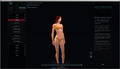
"Body" menu and submenus

"Colors" menu and submenus


Clothes and make-up previews[edit]
There's are previews available to visualize the avatar's appearance with a potential set of armor, clothes and make-up. PLEASE NOTE: These are just visualizing previews, you will not get the items or make-up mask you can see there!
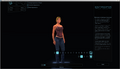
Female clothes preview 01

Female clothes preview 02
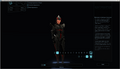
Female clothes preview 03

Female makeup preview, one of 12 options


Finishing avatar creation[edit]
Before finishing the avatar creation process make sure you are satified with your avatar. Once you've finished your avatar creation process you will quite likely not be able to change the visual appearance of your avatar without spending money. Avatar customization is a common service other players offer for money.
The appearance of your avatar in game might not match what it looked like in the avatar creation area. If you think the differences are too big you might want to File a support case.
You might want to introduce your avatar in this thread: http://www.entropiaplanets.com/threads/entropia-universe-avatars-post-vu14.9088/
Avatar appearance presets[edit]
There is a set of avatar appearance preset available from which you can choose.
Male[edit]
Male avatar appearance presets.

Male preset 01 Body
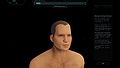
Male preset 01 Head
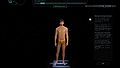
Male preset 02 Body

Male preset 02 Head
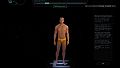
Male preset 03 Body
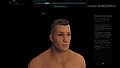
Male preset 03 Head
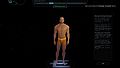
Male preset 04 Body

Male preset 04 Head
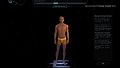
Male preset 05 Body
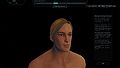
Male preset 05 Head
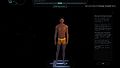
Male preset 06 Body
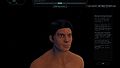
Male preset 06 Head

Male preset 07 Body
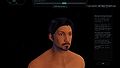
Male preset 07 Head
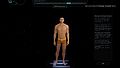
Male preset 08 Body
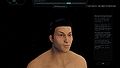
Male preset 08 Head
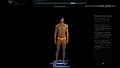
Male preset 09 Body
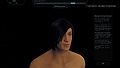
Male preset 09 Head
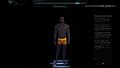
Male preset 10 Body
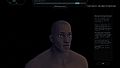
Male preset 10 Head
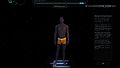
Male preset 11 Body
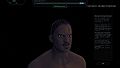
Male preset 11 Head


Female[edit]
Female avatar appearance presets.

Female preset 01 Body
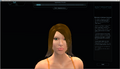
Female preset 01 Head
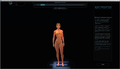
Female preset 02 Body
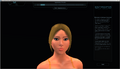
Female preset 02 Head

Female preset 03 Body
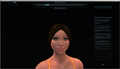
Female preset 03 Head

Female preset 04 Body

Female preset 04 Head
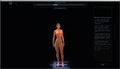
Female preset 05 Body
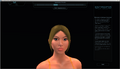
Female preset 05 Head
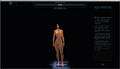
Female preset 06 Body

Female preset 06 Head
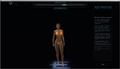
Female preset 07 Body

Female preset 07 Head

Female preset 08 Body

Female preset 08 Head

Female preset 09 Body
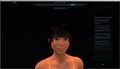
Female preset 09 Head

Female preset 10 Body
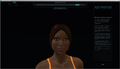
Female preset 10 Head
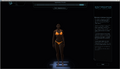
Female preset 11 Body
Female preset 11 Head


Avatar hairstyles and beardstyles[edit]
Male hairstyles[edit]
Available male hairstyles.
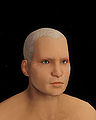
Male hairstyle 01

Male hairstyle 02

Male hairstyle 03
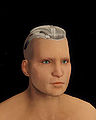
Male hairstyle 04

Male hairstyle 05
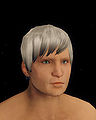
Male hairstyle 06

Male hairstyle 07
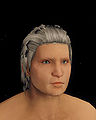
Male hairstyle 08
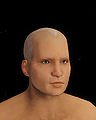
Male hairstyle 09
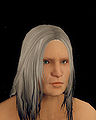
Male hairstyle 10
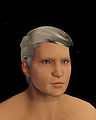
Male hairstyle 11
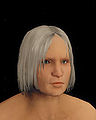
Male hairstyle 12

Male hairstyle 13
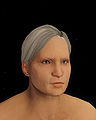
Male hairstyle 14
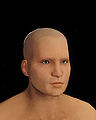
Male hairstyle 15
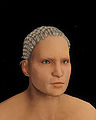
Male hairstyle 16
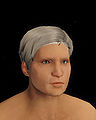
Male hairstyle 17
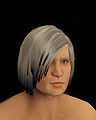
Male hairstyle 18


Male beardstyles[edit]
Available male beardstyles.
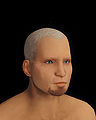
Beard Style 01
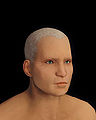
Beard Style 02

Beard Style 03
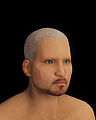
Beard Style 04
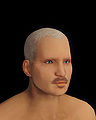
Beard Style 05
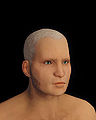
Beard Style 06


Female hairstyles[edit]
Available female hairstyles.
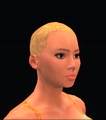
Female hairstyle 01
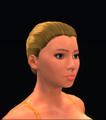
Female hairstyle 02

Female hairstyle 03

Female hairstyle 04
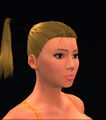
Female hairstyle 05

Female hairstyle 06

Female hairstyle 07
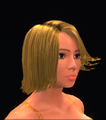
Female hairstyle 08
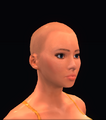
Female hairstyle 09

Female hairstyle 10

Female hairstyle 11

Female hairstyle 12
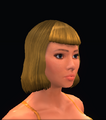
Female hairstyle 13

Female hairstyle 14

Female hairstyle 15
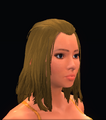
Female hairstyle 16

Female hairstyle 17

Female hairstyle 18

Female hairstyle 19

Female hairstyle 20

Female hairstyle 21
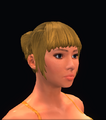
Female hairstyle 22
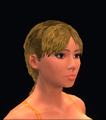
Female hairstyle 23
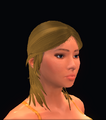
Female hairstyle 24

Female hairstyle 25

Female hairstyle 26
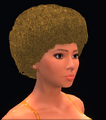
Female hairstyle 27
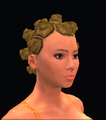
Female hairstyle 28

Female hairstyle 29

Female hairstyle 30
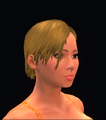
Female hairstyle 31

Female hairstyle 32

Female hairstyle 33

Female hairstyle 34


Avatar appearance history[edit]


Media[edit]
Videos[edit]
Avatar Creation video by Luri Nightshade:
Avatar Creation video by PigBenisHateraid:
Links, references, contributors, categories[edit]
- Thread: New avatar system info n faq
- Thread: EU Avatar Before n After Contest
- Thread: MindArk introduces dramatically new avatar system
- Thread: New Avatar Creation System scheduled for 22 January 2013
- Thread: The infamous avatar update....
Contributors:
|